From Rig to Report
Eight quick steps, one site visit. Here's exactly what happens on your phone from the moment you open the app to the moment your report is saved.
The Eight Steps
Open the App
Launch AnchorLink on your phone before you get out of the truck.
Sign Up / Sign In
Create an account or sign back in. Your sessions and history sync automatically.
Choose the Number of Anchors
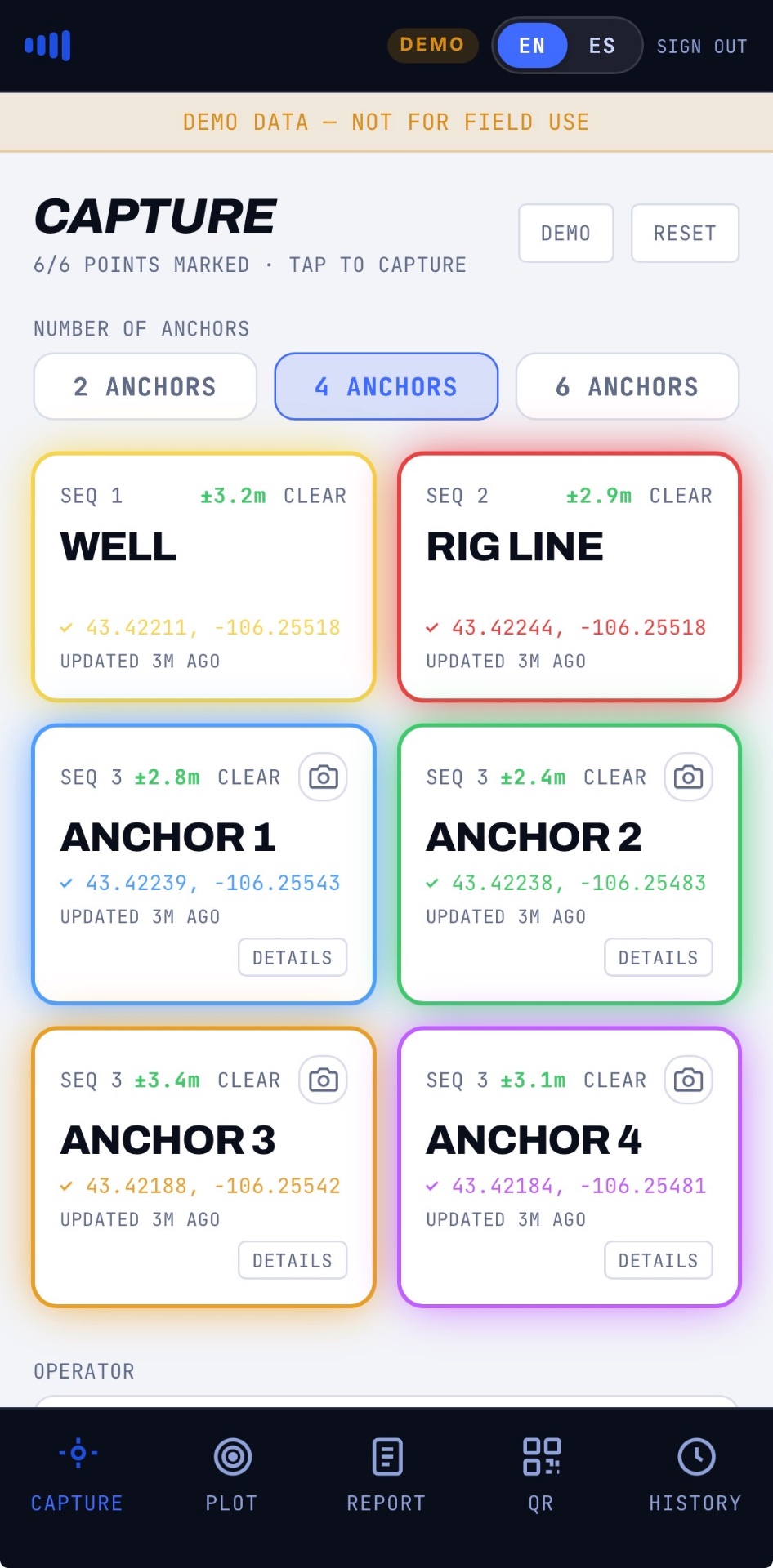
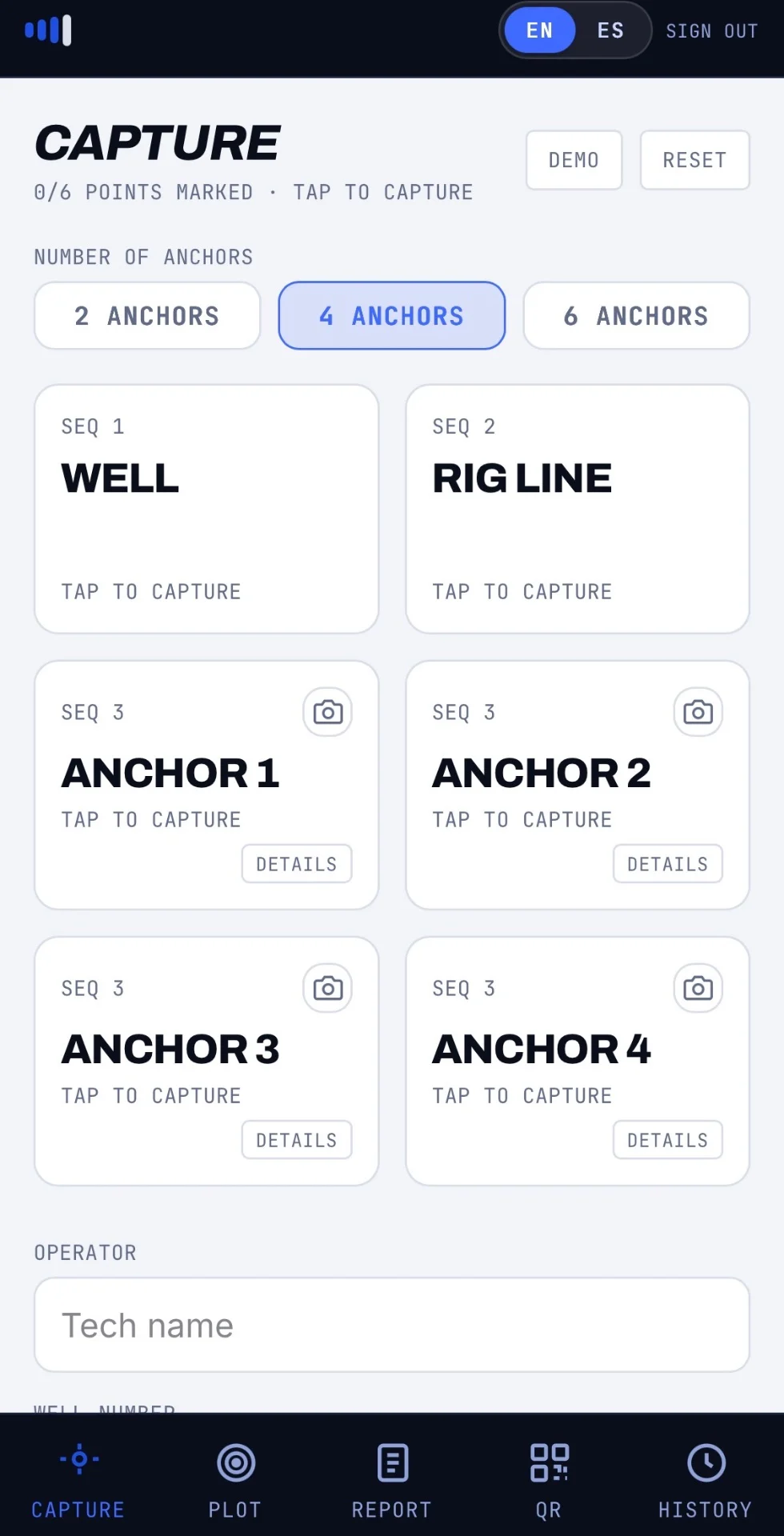
Tap 2, 4, or 6 Anchors. AnchorLink builds the WELL, RIG LINE, and every anchor card for that pattern instantly.
Set Anchor Details
Each anchor defaults to PSA (Portable Surface Anchor). Tap Details to switch to Earth Anchor, or add Serial Number, Test Date, Minimum Required Pull, Initial Pull, and Certification Info, then tap Done. Repeat for every anchor that needs it — before you capture anything.
Enter Operator & Well Number
At the bottom of the screen, fill in the Operator name and Well Number.
Tap Well
Walk to the well center and tap WELL to capture.
Tap Rig Line
Walk down the rig line and tap RIG LINE to capture.
Tap Each Anchor
Walk to every anchor and tap to capture. They don't need to be tapped in any order — they just need the correct anchor number. The moment the last anchor locks in, your report is created and saved with a date/time stamp, ready to save or print.
Anchor Details, Set Before You Tap
Every anchor defaults to PSA (Portable Surface Anchor). Tap Details on any anchor card to switch to Earth Anchor, or log Serial Number, Test Date, Minimum Required Pull, Initial Pull, and Certification Info. Tap Done, then repeat for every anchor that needs it.
Tap Well, Rig Line, Then Every Anchor
Walk to the well center and tap WELL, then walk your rig line and tap RIG LINE. From there, tap each anchor — in any order, as long as the anchor number is correct. The moment the last anchor locks in, AnchorLink builds your report automatically, time-stamped and ready to save or print.